
Intermittent Slow HTTPS Uploads Behind Cisco FTD and Nexus vPC: Tracing It to the ISP Handoff
Large uploads were fast one try and 10x slower the next. How we cleared the Nexus vPC core with no outage and traced the fault to the ISP handoff.
Upload a large file: it flies. Upload the same file again: it crawls along at about a tenth of the speed. Do it a third time and it might be fast again. Nothing is down, nothing is alarming, and every device in the path says it’s healthy.
That was the problem a client brought me into. Another engineer already had a theory, and the plan on the table was to start pulling redundant links out of the core. Here’s how we proved where the problem actually was, without unplugging anything we didn’t have to, and why the answer turned out to be outside the client’s network entirely.
The Symptom
The client hosts a public web application in their own data center. Users upload files to it over HTTPS. Large uploads were randomly fast or extremely slow, with the slow runs landing at roughly one tenth of the normal speed.
The good news was that it was reproducible. Using one large test file and uploading it repeatedly, the pattern was easy to trigger: one attempt would run at full speed, and the next would be dramatically slower. Same user, same file, same server, different result.
The Environment
The path from the internet to the application looked like this:
- The ISP hands off two uplinks: one to each firewall
- Two Cisco FTD firewalls in an active/standby HA pair, managed by FMC
- Each firewall connects to a pair of Nexus cores with a port-channel: one link to each core, bundled with vPC
- The application runs as a VM on an ESXi host (managed by vSphere) connected to the Nexus cores
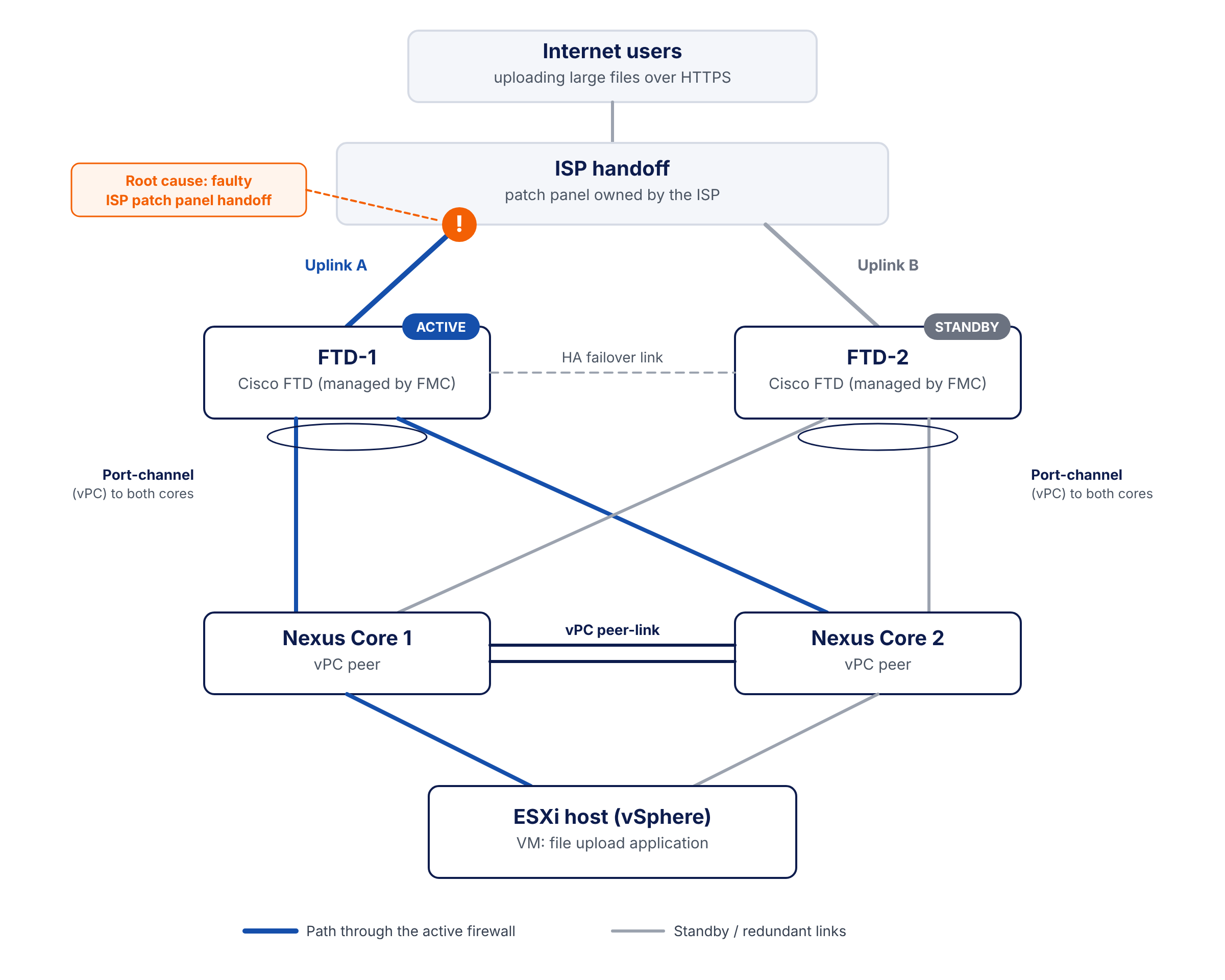
Two ISP uplinks, an FTD HA pair, and a vPC pair of Nexus cores in front of the ESXi host. Every layer is redundant, which matters later.
Every layer has two of everything. That’s good design, and it’s also what made this problem look random.
The Obvious Wrong Answer
Before I was involved, the working theory was a bad link in one of the port-channels: either between the firewalls and the cores, or in the vPC peer-link between the two Nexus switches. The proposed test was to disconnect the redundant links so traffic had only one path from the firewall to the server, then see if the problem went away.
It’s a reasonable theory. Intermittent slowness on a network full of bundled links is exactly what a single bad member link looks like. But the test had real costs: it needed a maintenance window, someone physically on site, and it removed redundancy from a production core while it ran.
There was a cheaper way to ask the same question.
How It Was Actually Found
Step 1: Pin the path through the core without touching a cable
A port-channel doesn’t split a single connection across its links. It hashes each flow onto one member link based on fields in the packet. By default, the Nexus cores were hashing on source and destination IP plus Layer 4 port.
That detail explains the symptom perfectly. Every new upload opens a new TCP connection with a new source port. A new source port means a new hash result, and a new hash result can mean a different physical link. If one member link were bad, you would see exactly this: some uploads fast, some slow, depending on which link the hash picked.
So instead of unplugging links to force a single path, I changed the hash. With the load-balancing method set to source and destination IP only, every connection from the same client to the same server would land on the same links through the core, every time, no matter what source port it used.
! Applied on both Nexus vPC peers
configure terminal
  port-channel load-balance src-dst ip
end

! Confirm the active hash method
show port-channel load-balance
This change didn’t require a maintenance window. Changing the hash method doesn’t bring links down or tear down existing sessions. It only changes which member link future flows are assigned to.
Then we ran the test again. Same result: one upload fast, the next slow.
With the path through the core pinned, the results should have been consistently fast or consistently slow. They were still mixed, so the core’s port-channels weren’t the cause.
That ruled out the Nexus cores, the vPC peer-link, and the theory that had been on the table, without unplugging a single cable. I reverted the hash so the core went back to spreading traffic across all of its links:
configure terminal
  port-channel load-balance src-dst ip-l4port
end
Step 2: Fail over the firewall pair
With the core cleared, what was left was the active firewall, its internet uplink, and its port-channel to the core. The HA pair made the next test straightforward: make the standby firewall active. FTD-2 has its own uplink to the ISP and its own port-channel to the core, so a failover swaps out all of those at once.
A failover does cause a short interruption, usually 5 to 10 seconds or less, so this one went through the proper process: stakeholders were notified and a maintenance window was scheduled. During the window, we switched the active peer to FTD-2 from FMC and reran the uploads.
The difference was immediate. Every upload ran at full speed. The problem lived somewhere on FTD-1’s side: its internet uplink or its port-channel down to the core.
Step 3: Make the problem follow the uplink
On the core side, I had used the hash to pin traffic. On the firewall side, there wasn’t an equivalent hash change available to us through FMC, so the remaining tests had to be physical. Since we were already inside the maintenance window, I asked for approval to swap one cable.
The plan: move the internet uplink from FTD-1 (Uplink A) over to FTD-2, which was now active. If the slow uploads came back, the fault had to be in that uplink or upstream of it, not in either firewall or the core.
After another notice to users, the cable was moved, and the slow uploads came right back. The problem followed Uplink A.
Step 4: Replace the cable
That left two possibilities: the cable itself, or the ISP’s equipment it connected to. With someone on site, we replaced Uplink A with a brand-new Cat6 cable.
Still slow. With the cable ruled out, the only thing left was the ISP’s side of the handoff.
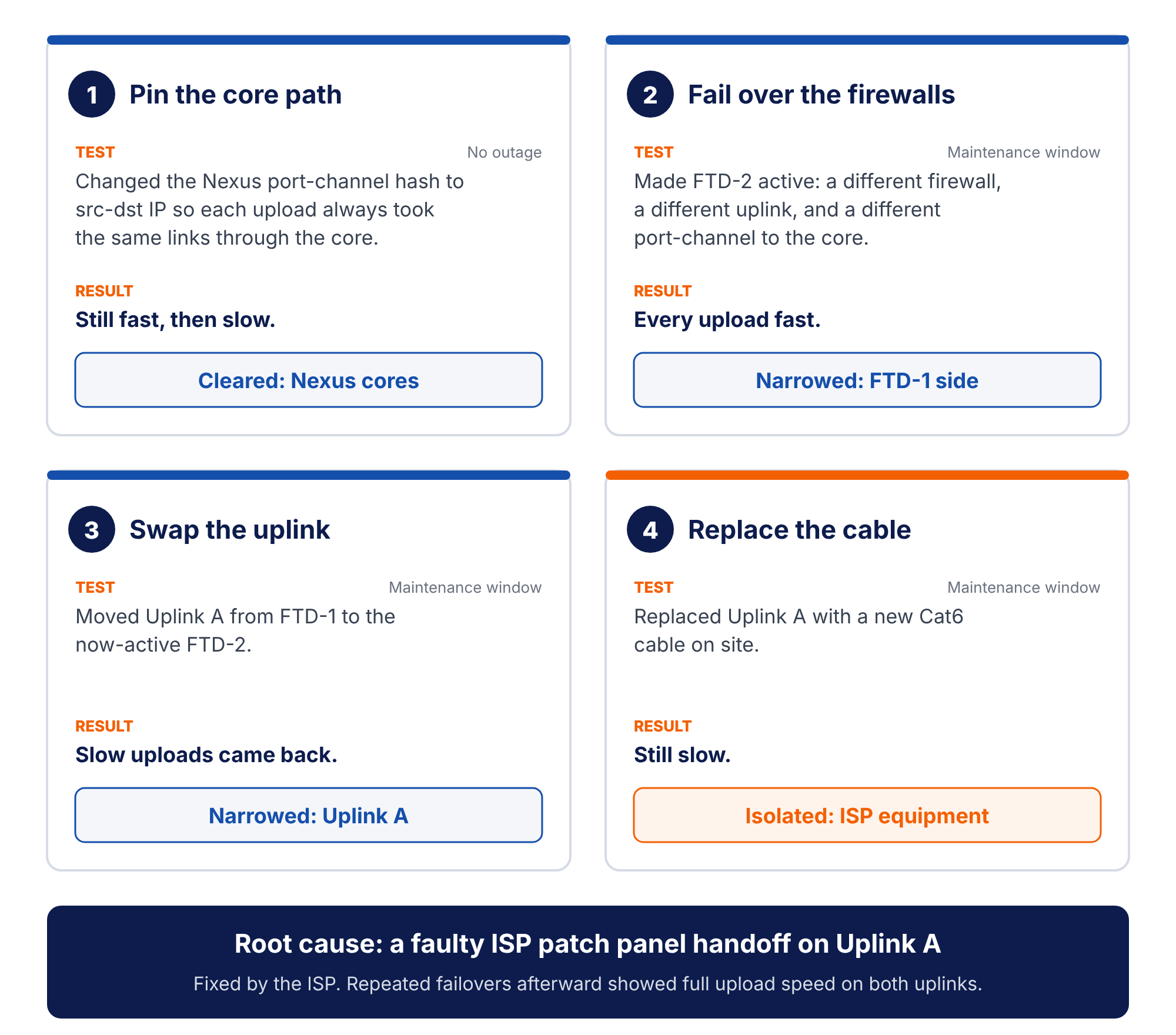
Four tests, each one changing a single variable. Only the first one is invisible to users, which is why it went first.
The Root Cause
A faulty patch panel handoff on the ISP’s side of Uplink A. The fault was outside the client’s network, so no change to the firewalls, the core, or the cabling was ever going to fix it.
We moved all the cables back to their original positions and left FTD-2 active while the ISP was engaged. I wrote up a summary of each test, what it ruled out, and why, and handed it to the client. With that in hand, they worked with the ISP, who found and fixed the bad patch panel handoff.
After the repair, we failed the firewalls back and forth several times. Uploads ran at full speed on both uplinks.
There was a bonus, too. Other users had been reporting slowness that nobody had connected to this issue, because it was milder than what we saw with large uploads. Those complaints went away with the same fix.
The Fix, and How to Avoid It
The repair itself was the ISP’s. What made it possible was getting from “it’s random” to a specific piece of equipment with evidence behind it. A few habits did most of the work:
- Make the network hold still before you blame it. Redundant links and per-flow hashing turn one bad path into random-looking slowness. Pin the hash to source and destination IP and the randomness either disappears or proves the path isn’t the problem.
- Run the cheapest test first. The hash change answered the original theory with no outage, no site visit, and no loss of redundancy. Disruptive tests waited until they had earned a maintenance window.
- Change one variable at a time. Failover swapped the whole firewall side. The cable swap moved only the uplink. The new cable replaced only the cable. Each result narrowed the scope instead of muddying it.
- Make the problem follow a component. Moving the uplink to the healthy firewall and watching the slowness move with it is far stronger evidence than any single show command.
- Don’t stop at your own demarc. Clearing every device you own doesn’t mean the problem is solved. It means you have exactly what you need to hold the provider accountable.
The broken part was a patch panel nobody on the client’s team could see or touch. What closed the case wasn’t a clever command. It was a sequence of tests that each removed one possibility, until the only one left belonged to the ISP and the evidence made that impossible to argue with.
Run into something like this?
We provide Tier 2/3 escalation support for MSPs, VARs, and internal IT teams. If your team is stuck on a problem like this one, we can help.